Marketing lead tracking: Connect forms to CRM for smarter pipelines
Marketing lead tracking is simply knowing exactly how potential customers find you. It's about connecting the dots between a specific marketing effort, like a Google Ad or a blog post, and the actual person who fills out a form, so you can finally see what's really working.
Why Your Marketing Lead Tracking Isnt Working
It’s a story I hear all the time from marketers. You’re getting leads through the website, but the ‘Lead Source’ field in your CRM is a wasteland of blank entries. You know your paid ads, SEO work, and social media campaigns are bringing people in, but you can't confidently tell your boss which channel delivers the most valuable customers.
This gap turns marketing lead tracking into a guessing game. It’s not a strategy problem; it’s a technical one.
There's a broken data pipeline between your website forms (like Gravity Forms or a native Webflow form) and your CRM (like HubSpot or Salesforce). Critical attribution data—like UTM parameters—gets dropped the moment a user hits "submit."
The Great Data Disconnect
Think of it like this: a visitor clicks a Google Ad and lands on your site. They're carrying a digital "package" of data that says, "Came from Google Ads, Campaign X." They look around, like what they see, and fill out your contact form.
But when your form sends their details to your CRM, it only passes along their name and email. The package with all the juicy source data gets left behind on your website's doorstep.
This isn't a rare issue; it's the default for most marketing setups. Globally, 90.7% of marketers rely on their website for leads, but a staggering 36% who use forms admit they struggle to track performance. And while 67.8% of marketers now use a CRM, a huge number are still stuck with messy spreadsheets or no system at all. You can dive deeper into these lead generation statistics if you're curious.
For a small business, this could mean thousands of contacts flooding your CRM each year with no source data attached. It becomes completely impossible to calculate your ROI channel by channel.
This creates painful blind spots. You can't double down on what’s working or cut the budget for what isn’t. You're forced to make decisions based on gut feelings instead of hard data.
Before we dive into the fix, let's look at the most common ways this data disconnect shows up and the real-world headaches it causes.
Common Lead Tracking Gaps And Their Business Impact
This table breaks down the most frequent tracking problems I see marketers face and how they directly impact business decisions. These are the "symptoms" that tell you something is broken in your data pipeline.
| Tracking Problem | What It Looks Like | Why It Happens | Business Impact |
|---|---|---|---|
| Blank 'Lead Source' | The Lead Source or Original Source field in your CRM is empty for most new contacts. |
Your forms aren't configured to capture UTMs or referral data and pass them to the CRM as hidden fields. | You can't attribute leads to specific campaigns, making it impossible to calculate marketing ROI. |
| All Leads from "Direct" | A huge percentage of your leads are attributed to "Direct Traffic" in your analytics and CRM. | The tracking script loses the original referral source as users navigate your site before converting. | You over-attribute to brand and under-attribute to top-of-funnel channels like SEO and social. |
| "Organic Search" Overload | Almost every lead is tagged as coming from organic search, even your paid and social leads. | Last-touch attribution models ignore the initial paid or social click if the user later returns via a branded search. | You mistakenly cut budgets for paid channels that are actually driving initial awareness and conversions. |
| Missing Campaign Details | You know a lead came from "Google Ads," but have no idea which campaign, ad group, or keyword. | Your forms are only capturing the utm_source but not other parameters like utm_campaign or utm_term. |
You can't optimize ad spend because you don't know which specific ads or keywords are performing best. |
Recognize any of these? If so, you're in the right place. These issues aren't just minor annoyances; they lead to wasted budget, missed opportunities, and the inability to prove marketing's value.
The most expensive marketing is the marketing you can't measure. When you don't know where your best leads come from, every dollar spent is a gamble.
The good news? This is a completely solvable problem, and you don’t need to be a developer to fix it. A modern, code-free approach can automatically capture this data, keep it attached to the user as they browse, and push it into your CRM along with their form submission.
This guide will walk you through exactly how to build that bridge. You'll finally be able to see where every single lead really came from.
How to Automatically Capture Lead Source Data
To fix the gap in your data, you need a way to see exactly where a visitor came from and keep that information tied to them as they click around your site. The dream is a "set it and forget it" system that works in the background, so the moment a lead fills out a form, you have their full origin story. This is where a simple, automated script becomes your best friend.
Think of an attribution tool as a digital detective. The second a visitor lands on your website, it starts investigating. Did they click through from a Google Ads campaign? A link you shared on LinkedIn? Or did they find you through an organic search for a keyword you've been working hard to rank for?
The script intelligently sorts this information into clean, understandable channels, doing all the heavy lifting for you.
The Power of Browser Cookies
Once the script figures out the source, it stores this precious data in the visitor's browser as a cookie. It's just a tiny text file that holds all the important attribution details, like:
- Channel: The top-level source, such as Organic Search, Paid Social, or Referral.
- Source: The specific platform they came from, like Google, Facebook, or a partner's website.
- Campaign: The
utm_campaignvalue you set in your ad URLs. - Content: The
utm_contentvalue, which is great for A/B testing different ad creatives. - Keyword: The
utm_termvalue, which tells you the exact search term that triggered an ad click.
This cookie acts like a digital sticky note that follows the visitor everywhere they go on your site. It doesn't matter if they browse from the homepage to the pricing page and then over to the blog. That original source data is saved, just waiting for the moment they decide to become a lead.
The flowchart below shows you exactly where this critical marketing data usually gets lost between your website forms and your CRM.
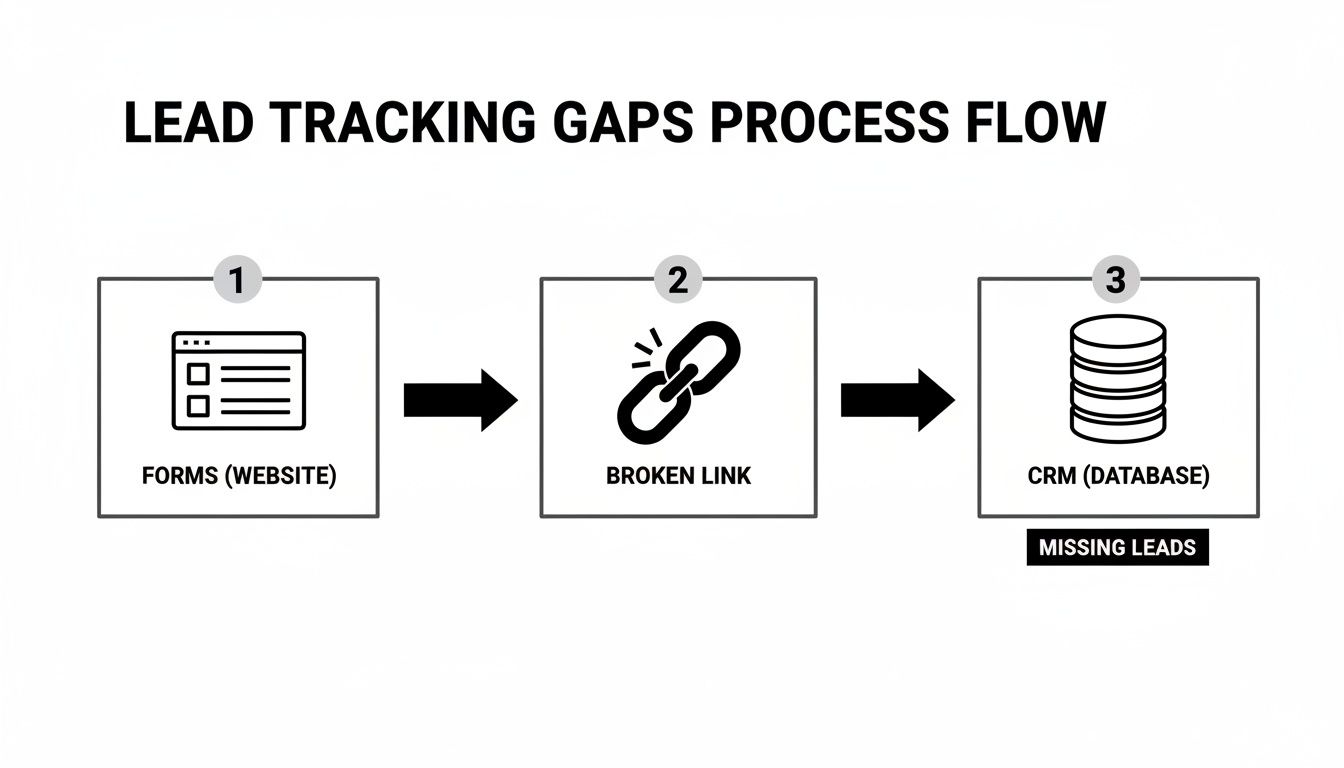
This is the broken link in the data pipeline that a good attribution script is built to fix, making sure that data stays intact throughout the entire journey.
Beyond Basic UTMs
A really smart tracking script does more than just read your UTM parameters. That's crucial, because not all of your traffic comes from perfectly tagged ad campaigns. What about all those visitors finding you through organic channels?
This is where the script's intelligence really comes into play. It analyzes the referring URL to fill in the missing pieces.
- If someone lands on your site from a Google search, the script sees "google.com" as the referrer and automatically classifies the channel as 'Organic Search'.
- If they click a link from your company's LinkedIn page, it identifies the source as 'Organic Social'.
- If they come from a guest post you published on another industry blog, it logs that as 'Referral' traffic.
This comprehensive approach gives you the full picture of your marketing performance, not just the slice you're paying for with ads. You finally get the clarity you need to understand where every single lead is coming from.
When you automatically capture and categorize every visitor's origin, you stop guessing and start making confident, data-driven decisions. You're no longer just hoping your SEO efforts are working—you can see the leads they generate right inside your CRM.
How the Script Actually Works on Your Website
Getting this set up is surprisingly simple. It usually involves adding a small snippet of JavaScript code to the header or footer of your website. If you're using a platform like WordPress or Webflow, it's often as easy as copying and pasting.
Once the script is live, it kicks into gear for every new visitor. It does its source-detection magic and writes the attribution data to their browser cookie. And that's it. From that point on, the system is completely automated. You don't have to touch it again.
Now that the data is being stored, you're ready for the next critical step: connecting it to your lead forms so it can be passed into your CRM. You've officially laid the foundation for accurate marketing attribution, and it's working for you 24/7.
Getting Your Forms to Capture Attribution Data
Alright, so you’ve got a script capturing all that juicy attribution data in the visitor's browser. Now, how do we get that information from their browser into your systems? This is where your website's lead forms come into play. We need to create a bridge so that when a lead hits "submit," all that valuable marketing data comes along for the ride.
Think of your typical form fields—Name, Email, Company—as the visible part of an iceberg. We're about to add the really important stuff that sits just below the surface: hidden fields. These fields do their work silently in the background, grabbing the source data stored in the browser cookie and attaching it to that specific lead's submission.
The best part? You don't need to write a single line of code to make this happen. Whether you’re using Gravity Forms on WordPress, a native Webflow form, or another popular tool, the concept is exactly the same. You're just adding a few new, invisible fields to your form that a tool like LeadPulse knows how to find and fill out automatically.

Adding the Hidden Fields to Your Forms
Let's ground this in a real-world scenario. Your team is running Google Ads, you're putting effort into SEO, and you’re active on LinkedIn. You need to know, without a doubt, which of these channels are actually bringing in qualified leads.
To do this, you’ll add a few specific hidden fields to your contact and demo request forms. While you can name them whatever you like, I’ve found that sticking to a standard convention makes everything easier down the line. Here are the essentials for solid marketing lead tracking:
- Channel: This field will tell you the high-level marketing channel, like 'Paid Search', 'Organic Social', or 'Referral'.
- Source: This gets more specific, identifying the platform itself—think 'Google', 'Facebook', or 'LinkedIn'.
- Campaign: This one pulls the
utm_campaignvalue right from your ad links, so you know which specific campaign drove that lead. - Content: This captures the
utm_contentparameter, which is perfect for A/B testing ad creative or tracking different links in an email. - Keyword: For paid search, this grabs the
utm_termvalue, showing you the exact search query that led to the conversion. - Landing Page: This simply records the very first page the person landed on when they arrived at your site.
Adding these is usually a simple drag-and-drop process right inside your form builder. You'll just look for a "Hidden Field" type, give it a label that matches the data it will hold (e.g., "Channel"), and you're good to go.
Don't underestimate this small step. Preparing your forms with these hidden fields creates the designated "slots" for your attribution data to flow into. It’s the single most important part of connecting your marketing activities to actual leads.
A Quick Example in Webflow
Let's say you're building your site in Webflow. The process is incredibly straightforward.
- First, open the page with your form and select the Form Block element.
- Next, just drag a new "Text Field" element into your form.
- In the Element Settings panel, give it a simple name like "Channel." The critical part here is to also set its ID to match, but in lowercase—for example,
channel. This predictable ID is what allows the script to find and populate the field automatically. - Finally, pop over to the Style panel and set the display setting for this new field to "None."
And that’s it. The field is now on the page, ready to receive data, but it’s completely invisible to your visitors. Just repeat this process for the other data points you want to capture, like Source and Campaign. If you want to go deeper, there's a lot more you can do with hidden fields in your forms to capture all kinds of useful info.
Why This Method Works So Well
When you set up your forms this way, you ensure every single lead submission is automatically enriched with its origin story. Now, when someone from a Google Ad fills out your form, their record won't just have a name and an email. It will also carry the data: "Channel: Paid Search," "Source: Google," and the specific campaign name that brought them in.
This context is absolute gold for both your marketing and sales teams. It gets rid of the guesswork and manual data entry, providing instant clarity on what’s actually working. A solid grasp of concepts like First Touch vs Last Touch Attribution is also super helpful here, as it helps you decide which touchpoints are most valuable for you to track in the first place.
With your forms now set up to catch all this attribution data, you're ready for the final piece of the puzzle: sending it all to your CRM.
Sending Complete Attribution Data To Your CRM
Getting attribution data captured in your forms is a fantastic start, but the job isn't done yet. The data is only truly useful once it lands in your CRM where your sales team can actually use it. This last step is what connects the dots between a marketing click and a sales conversation, finally closing the loop on your marketing lead tracking.
The whole process boils down to mapping those hidden fields you just created on your forms to matching custom fields inside your CRM system. You're essentially telling your website form, "Hey, when you get a value for 'Channel,' I need you to stick it in this 'Channel' field in my CRM."
This is how raw data becomes a real asset. When a new lead pops up, your sales team won't just see a name and an email address. They'll know instantly that the person came from your "Q3 Google Ads Campaign" or found you through an organic search.
Prepping Your CRM for Attribution Data
Before you can push any data over, your CRM needs a place to store it. This means you’ll have to create a handful of new custom properties on your contact or lead records. Don't worry, it’s a quick, one-time setup that makes the rest of the process completely automatic.
Let's use HubSpot as an example, but the steps are pretty much the same whether you're using Salesforce, Pipedrive, or Airtable. You'll just head over to your property settings and create new fields that are perfect mirrors of the hidden fields on your web form.
Here are the custom properties I always recommend starting with:
- Original Channel: A simple text field for the high-level channel (e.g., 'Paid Search', 'Organic Social').
- Original Source: This is for the specific platform, like 'Google' or 'Facebook'.
- Original Campaign: Where your
utm_campaignvalue will live. - Original Content: For the
utm_contentfrom your ad variations. - Original Term/Keyword: To capture the
utm_termfrom your paid search ads. - Original Landing Page: The very first page the visitor landed on.
My Two Cents: Be religious about your naming conventions. If you name the hidden form field "Original Campaign," name the CRM property "Original Campaign." It sounds obvious, but this simple consistency saves a ton of headaches and makes the mapping step a breeze.
Once these properties are created in your CRM, you’ve basically built the 'parking spots' for all your incoming attribution data. Now you just have to connect them to your forms.
Mapping Form Fields to CRM Properties
This is where your website and your CRM officially shake hands. Most modern form builders with CRM integrations make this part incredibly easy. Look for a "field mapping" section in your form's integration settings or under an "actions after submit" tab.
You'll usually see a simple two-column layout. One side shows all the fields on your form (including your new hidden ones), and the other has a dropdown menu with all the available properties from your CRM.
From here, it's just a matching game.
You’ll map your hidden "Channel" field to the "Original Channel" property you just made in your CRM. Then you'll connect the "Campaign" field to the "Original Campaign" property, and so on down the list.
For example, when connecting forms to HubSpot, this setup ensures that every single submission doesn't just create a new contact, but it also fills out their record with a complete marketing history right from the get-go. If you want to see exactly how this works, you can find detailed guides on integrating with HubSpot that show how specialized tools can automate this entire flow.
The Payoff: An Empowered Sales Team
As soon as this connection is live, you'll see the impact. Imagine a sales rep gets notified about a new lead. Instead of starting from scratch, they open the contact record and see this:
| CRM Property | Value |
|---|---|
| Original Channel | Paid Search |
| Original Source | |
| Original Campaign | US-Q4-Demo-Campaign |
| Original Keyword | "project management software for agencies" |
| Original Landing Page | /solutions/agency-project-management |
Right away, that sales rep has a massive head start. They know this lead is actively looking for a solution like theirs, which ad campaign caught their eye, and what page they were just reading. This context is gold. It lets them tailor their outreach immediately and have a much more relevant conversation.
This simple, automated data flow transforms your CRM from a glorified address book into a strategic powerhouse. It helps your sales team close more deals, and it gives the marketing team the clean data they need to prove what's working. You've officially closed the loop.
Building Reports That Prove Marketing ROI
Okay, this is the moment we've been working towards. All that setup—capturing UTMs, creating custom fields, and pushing data into your CRM—was for this. This is the payoff.
With clean and complete attribution data flowing consistently, you can finally build reports that answer the big questions. We're moving beyond vanity metrics like form fills and clicks. This is how you turn marketing lead tracking into a machine for proving your return on investment.
You can now build dashboards that show which channels don't just bring in leads, but which ones actually deliver paying customers. This kind of clarity is a game-changer. It gives you the confidence to shift your budget, doubling down on what’s working and cutting the dead weight. It’s all about optimizing your spend for real impact, backed by data that nobody can argue with.

Your First High-Impact Report in HubSpot
Let's start with a practical example in HubSpot. One of the most eye-opening reports you can build is a "Deals by Original Source" report. It's a simple chart, but it directly connects your marketing channels to closed-won deals, cutting straight through the noise.
Getting it built is pretty straightforward:
- Head over to your HubSpot reporting dashboard and start a new custom report.
- Choose "Deals" as your main data source.
- On your chart, set the X-axis to that custom property we created earlier, like "Original Channel."
- For the Y-axis, you'll want to display the "Count of Deals."
- Here’s the most important part: add a filter for "Deal Stage is Closed-Won."
What you get is a clean bar chart showing exactly how many paying customers each marketing channel delivered. You might find that while your paid social campaigns bring in a ton of leads, organic search is actually your star player for creating real customers. That insight alone could completely change where you put your money next quarter.
With the right data, you stop asking, "How many leads did we get?" and start asking, "How much revenue did we generate?" This is the fundamental shift at the core of real marketing ROI analysis.
Visualizing Revenue by Campaign in Salesforce
If you're using Salesforce, the goal is identical: connect the marketing dots to actual business results. A fantastic report to build here is "Revenue by Original Marketing Campaign." This is incredibly useful if you’re running multiple ad campaigns and need to know which ones are truly profitable.
Here’s how you’d set that up:
- Create a new report using the "Opportunities" report type.
- Group the rows by the custom field you made for the campaign, such as "Original Campaign."
- Add a summary column for the "Amount" field and make sure it calculates the sum.
- Finally, filter the report to only show Opportunities where the "Stage" is "Closed Won."
This report gives you a ranked list of your campaigns based on the actual revenue they've produced. You can see, clear as day, that "Campaign A" brought in $75,000 while "Campaign B" only managed $15,000. Decisions about ad spend suddenly become incredibly simple and data-driven. For a deeper dive, our guide on how to measure marketing ROI offers more frameworks for turning this data into strategy.
Going Beyond Leads and Revenue
The power of having this complete attribution data doesn't stop with these two reports. Once the data is reliably sitting in your CRM, you can slice and dice it in countless ways to get answers.
- Which blog posts generate the most demo requests? Just filter your deals by their original landing page URL.
- Do leads from LinkedIn close faster than leads from Google Ads? Group by channel and analyze the average time between lead creation and deal-close dates.
- What's the customer lifetime value (LTV) by acquisition channel? This is a more advanced analysis, but it can reveal if certain channels bring in more valuable, long-term customers.
This is the kind of insight that separates good marketing from great marketing. It elevates your role from just generating leads to being a strategic driver of business growth. By meticulously tracking every lead from their first click to a closed deal, you build an unshakeable, data-backed case for every dollar you spend.
Got Questions About Tracking Your Leads? I've Got Answers.
Even after you’ve dotted all your i's and crossed all your t's on a new lead tracking setup, questions are bound to pop up. It’s totally normal. Let's walk through some of the most common ones I hear from marketers day-in and day-out.
Think of these as the real-world "what-ifs" that show up once the system is live. Knowing what to look for will help you trust your data and, ultimately, make much smarter marketing decisions.
"Why Are Some of My Leads Still Missing UTM Data?"
It's a gut-wrenching feeling, I know. You've done all the work, but some leads are still slipping through the cracks with no attribution data. Don't panic just yet. It's usually one of a few common culprits.
- Aggressive Ad-Blockers: Some privacy browsers and ad-blockers are designed to stop all tracking scripts in their tracks. This means the data never even has a chance to be captured. It happens.
- Simple Mapping Mix-ups: A tiny typo can throw a wrench in the whole works. Go back and double-check that your hidden field names in your web form exactly match the property names in your CRM. For example, if your form field is named "Campaign," it won't magically connect to a CRM property called "campaign_name." They have to be identical.
- Good Old-Fashioned Direct Traffic: Some people just type your URL directly into their browser or click a bookmark. By definition, this traffic won't have any UTM parameters. A good tracking tool will label this as ‘Direct’ traffic instead of leaving it blank, which is still a valuable piece of the puzzle.
These issues typically only affect a small slice of your leads. If you're seeing huge gaps in your data, you probably have a bigger setup problem that needs a closer look.
"How Does This Track Leads From Organic Channels?"
Great question. A solid tracking tool is so much more than a simple UTM reader for your ad campaigns. It should also be smart enough to look at the referring URL for every visitor who lands on your site. This is how you get the full picture of all your marketing efforts, not just the paid ones.
For instance, when someone finds you through a Google search, the tool sees ‘google.com’ as the referrer and intelligently tags that lead’s channel as 'Organic Search'. If they come from a link you shared on your company's LinkedIn profile, it gets tagged as 'Organic Social'. This is crucial for making sure your SEO and content marketing work gets the credit it deserves.
"Can I Track Leads From Phone Calls or Live Chat?"
Absolutely, though the approach is a little different. These are critical conversion points, and you definitely want to give marketing credit where it's due.
Most modern live chat tools like Intercom or Drift can be configured to grab the same attribution data from the hidden fields on the page. When a visitor starts a chat, that channel data gets pulled right into the conversation and passed over to your CRM along with their contact info.
For phone calls, you'll want to use a dedicated call tracking solution. These tools work by showing a unique phone number to visitors based on how they found you. When they call, the source is automatically captured and sent to your CRM. It's the best way to connect those offline conversions back to your online marketing.
"Will This Tracking Script Slow Down My Website?"
This is a big one, and a totally valid concern. We all know that page speed is king for both user experience and SEO. The good news is that modern tracking scripts are built to be incredibly lightweight and asynchronous.
"Asynchronous" is just a technical way of saying the script loads in the background, on its own time, without holding up the rest of your website. Your images, text, and other important content will load first, completely unaffected. The impact on your site’s speed is usually so small that neither you nor your visitors will ever notice it. You get the data you need without sacrificing performance.
Ready to stop guessing where your best leads come from? LeadPulse automatically captures marketing attribution data and sends it to your CRM, giving you the clarity to prove ROI and invest in what truly works.
See how it works at https://getleadpulse.com
7 Best SEO Dashboard Example Templates for Lead Attribution in 2026
Discover the top 7 SEO dashboard example templates for tracking leads and attribution. Get insights, metrics, and implementation tips for better reporting.
Improve Lead Conversion: A Practical Audit to Boost Your Pipeline
Discover a practical audit to improve lead conversion, fix attribution gaps, streamline lead flow, and optimize your entire process for measurable results.